Back up and restore your data
Accounts, transactions and reports are stored in the database on the server. Back it up regularly — ideally on an automatic schedule — so you can recover quickly if the server fails or data gets corrupted.
New interface
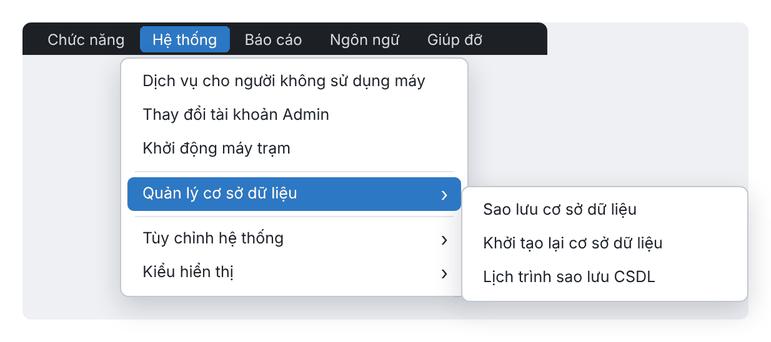
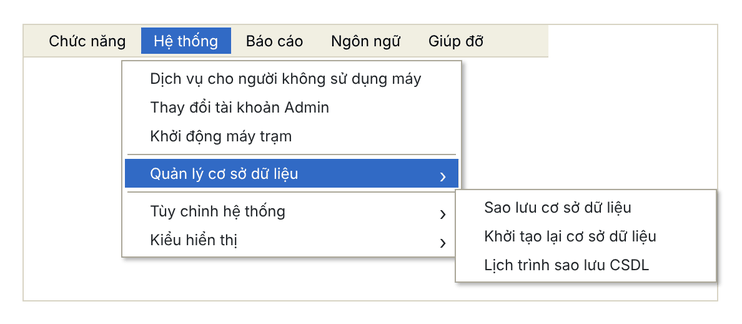
Classic interface
Back up now
- Choose Hệ thống › Quản lý cơ sở dữ liệu › Sao lưu cơ sở dữ liệu (System › Database management › Back up database).
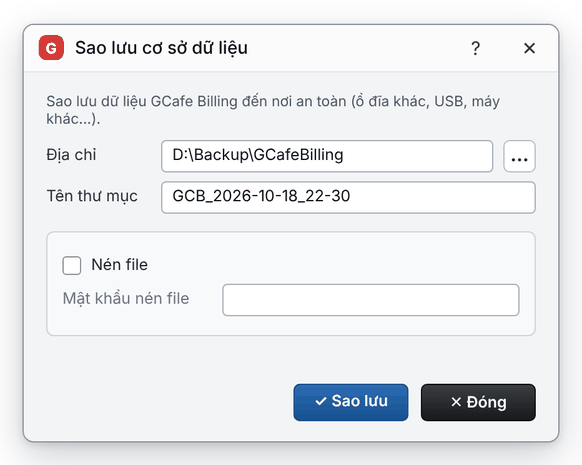
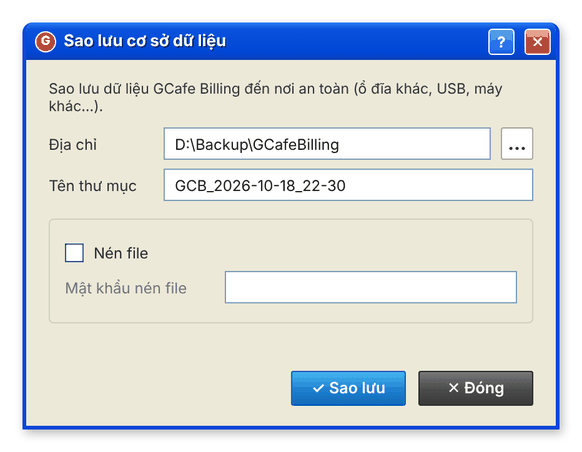
- In Địa chỉ (location), choose where to store the backup (preferably a different drive from the data, a USB drive or another PC).
- Change Tên thư mục (folder name) if needed — by default it uses the current date and time.
- Click Sao lưu (Back up).
New interface
Classic interface
Schedule automatic backups
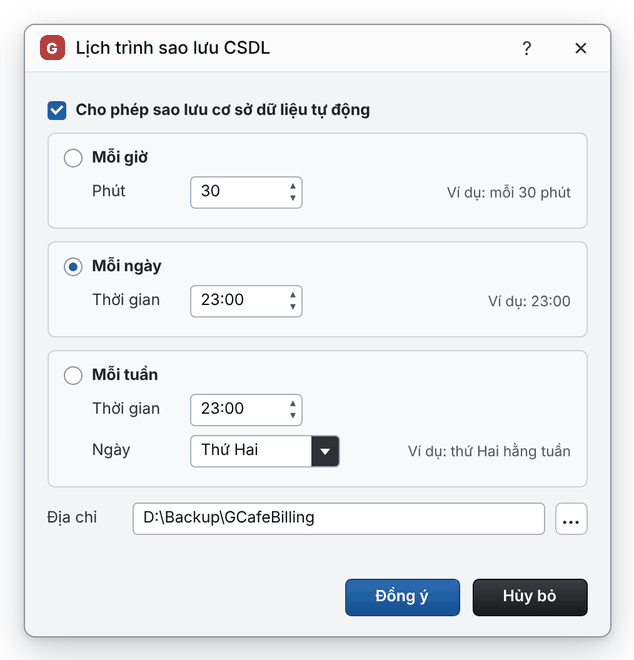
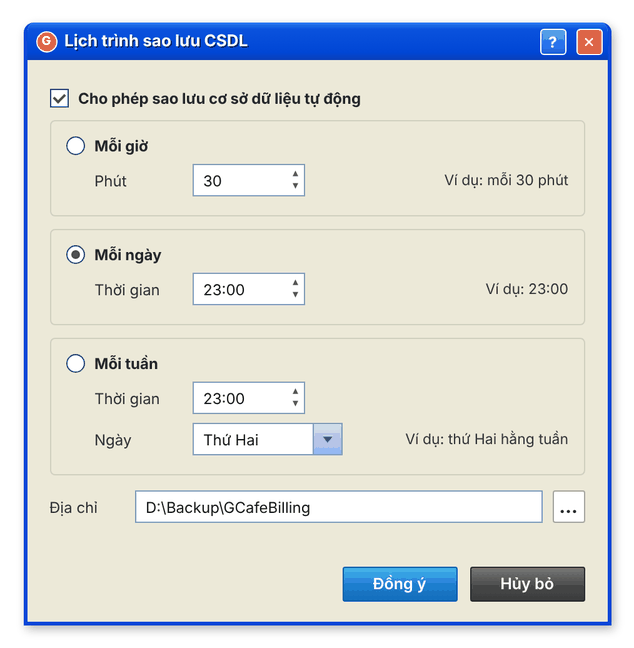
- Choose Hệ thống › Quản lý cơ sở dữ liệu › Lịch trình sao lưu CSDL (Backup schedule).
- Tick Cho phép sao lưu cơ sở dữ liệu tự động (allow automatic backup).
- Choose a type:
- Mỗi giờ (hourly): back up every number of minutes you enter.
- Mỗi ngày (daily): back up at a fixed time each day, e.g. 23:00.
- Mỗi tuần (weekly): back up on a fixed day and time each week.
- Choose the Địa chỉ (location) and click Đồng ý (OK).
New interface
Classic interface
Restore data
- Choose Hệ thống › Quản lý cơ sở dữ liệu › Khởi tạo lại cơ sở dữ liệu (Re-initialise database).
- Read the warning and click Yes to continue (or Cancel).
- Choose the backup folder to restore.
⚠️ Note: Restoring replaces all current data with the backup; transactions made after the backup are lost. Back up the current data before restoring.