Renew GCafe Update with a QR code
The Thanh toán (Payment) page renews GCafe Update: choose a package, scan the QR code and pay; renewal is automatic.
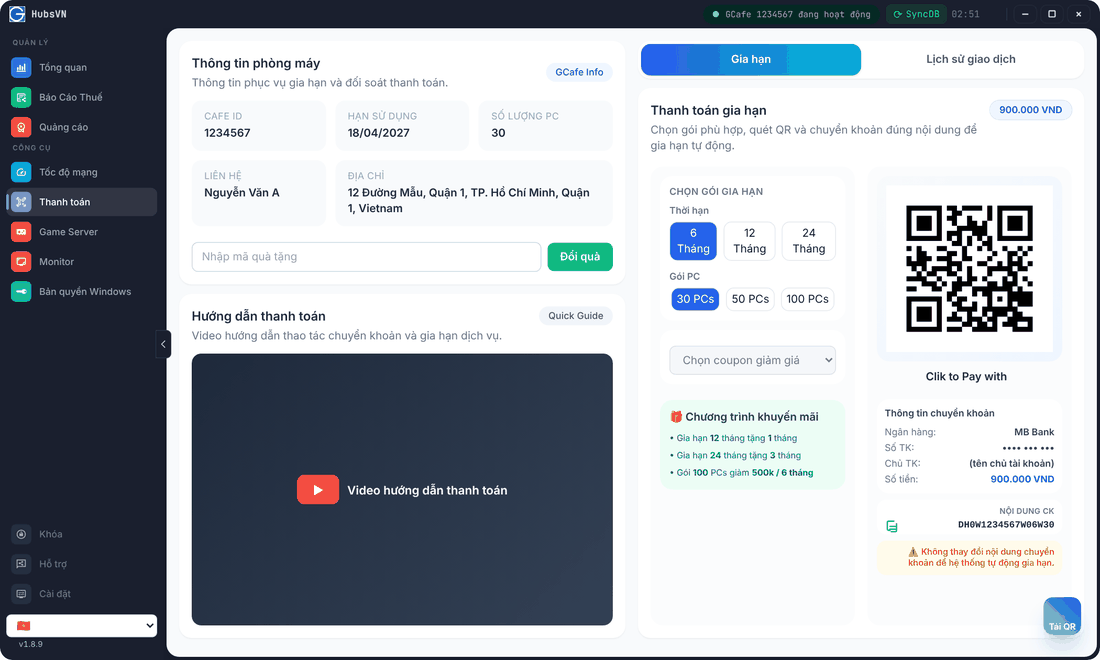
Renew
- Click Thanh toán in the left menu, open the Gia hạn (Renew) tab.
- Check Thông tin phòng máy (Shop info): CafeID, expiry date, PC count.
- Choose the Thời hạn (term: 6 / 12 / 24 months) and Gói PC (PC package). The amount appears at the top.
- Pick a discount coupon if you have one.
- Open your banking app and scan the QR code (or click Tải QR to save it).
- Transfer the exact amount with the exact transfer note shown on the page.
Result: once the payment arrives, the expiry date updates and the title bar shows đang hoạt động (active).
⚠️ Note: Do not change the transfer note — the system uses it to identify your shop and renew automatically.
Gift codes and renewal history
- Gift code: enter it in Nhập mã quà tặng and click Đổi quà (Redeem).
- Lịch sử giao dịch (History) tab: recorded renewals (purchase date, term, PCs).
- Hướng dẫn thanh toán (Payment guide) has a video on making the transfer.
Common errors
Message / symptom | Cause | What to do |
|---|---|---|
Paid but not renewed | Wrong note or amount, or the bank is slow. | Wait a few minutes and click SyncDB; if still not renewed, send the receipt to support. |
Chưa có mã QR (No QR code) | Portal could not read the shop info. | Check the Internet connection and verify the CafeID again. |