What is GCafe Billing?
GCafe Billing is the billing and management software for internet cafés: it times every session, charges for play time and services, manages members and staff, and lets you control client PCs from the server.
The screenshots show the Vietnamese interface. Labels are written as they appear on screen, followed by their English meaning.
New interface
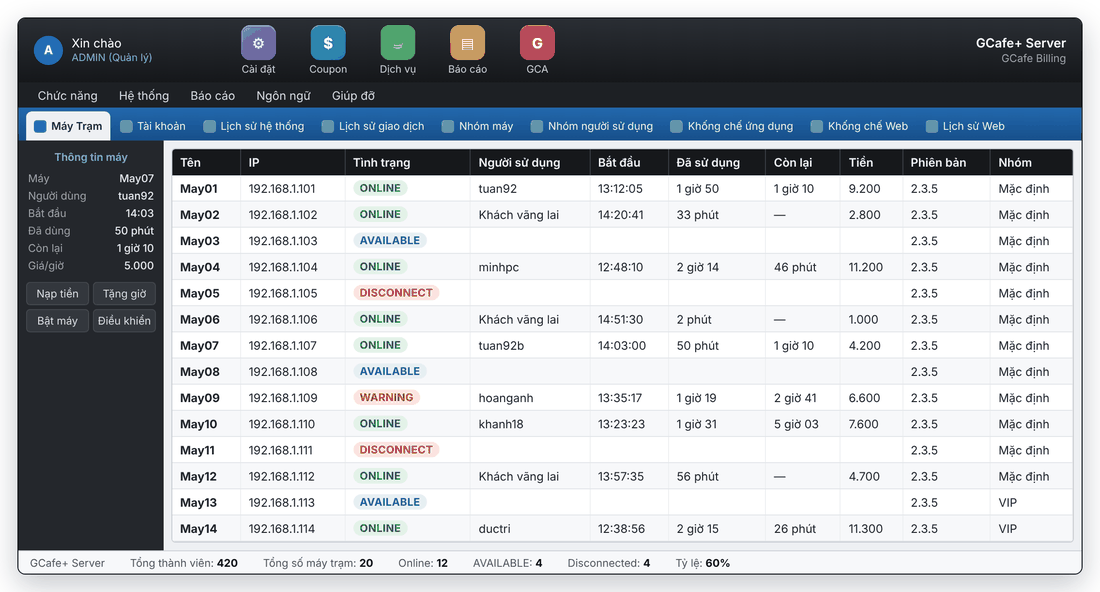
Classic interface
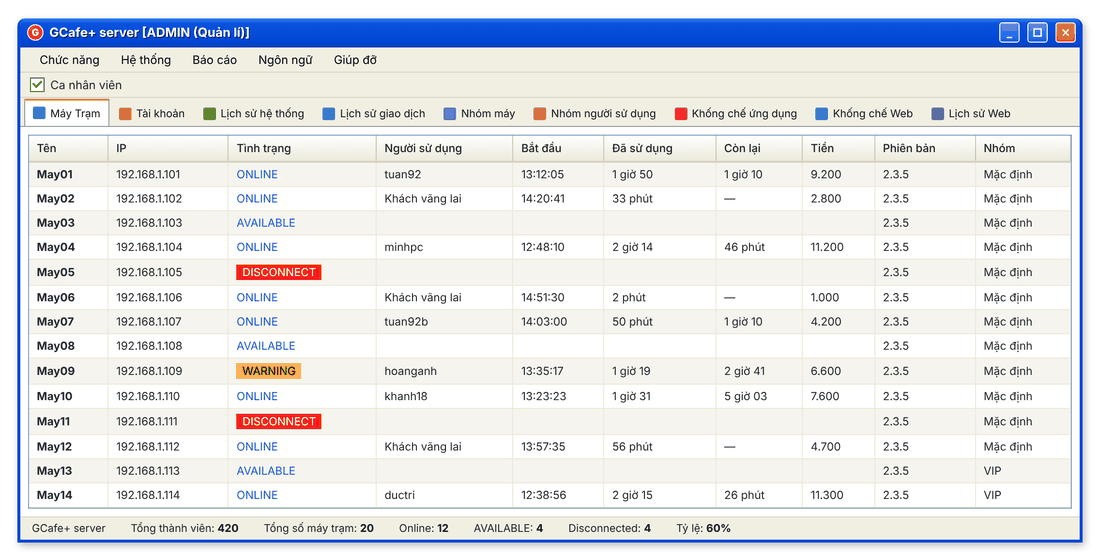
Main screen: one row per client PC, showing who is using it, time used, time left and the amount due.
What GCafe Billing does for you
- Automatic timing and billing: by machine group and user group, with rounding and a minimum charge per session.
- Account management: members, walk-in customers, staff and managers; members can be allowed to owe money.
- Client PC control from the server: view the screen, remote control, close applications, shut down / restart, power on remotely.
- Content control: block websites, block applications, lock Windows settings on client PCs.
- Reports: revenue by day / staff / machine, service revenue, transaction log and web history.
- Data backup: manual or scheduled backup, restore when needed.
Components
Component | Installed on | Role |
|---|---|---|
GCafe Billing server (shown on the PC as "GCafe+ Server") | The cashier PC / café server | Billing, accounts, prices, reports, client PC control. |
GCafe Billing client (shown on the PC as "GCafe+ Client") | Every client PC | Reports its status to the server and carries out server commands (close apps, shut down…). |
TightVNC | Installed alongside | Used by the remote control feature. |
Two interface styles
GCafe Billing comes in two interface styles: the new interface and the classic interface. Both have the same features, the same menu names and the same steps; only the look differs. Every picture in this guide therefore comes in both versions so you can match it to your screen.
What you see | New interface | Classic interface |
|---|---|---|
Top of the window | Dark background with a row of colored buttons: Cài đặt, Coupon, Dịch vụ, Báo cáo, GCA | Blue Windows XP-style title bar with a light menu bar below |
Tabs | Blue tab bar; the selected tab is light | Light tabs with small icons; the selected tab has an orange top edge |
Selected PC details | Dark panel to the left of the PC list | No separate panel; a Ca nhân viên (staff shift) line sits above the tabs |
Dialogs | Light title bar, tables with a black header row | Blue title bar, beige dialog background |
Terms used in this guide
Term | Meaning |
|---|---|
Server (cashier PC) | The PC running the GCafe Billing server, usually at the counter. |
Client PC | A PC customers play on. |
Member | A customer with their own account (user name, password) who tops up in advance and may be allowed to owe. |
Walk-in customer | A customer playing without an account, paying for the time used. |
Machine group | Client PCs sharing one price list, e.g. Standard, VIP. |
User group | Accounts (walk-in, member…) sharing the same price on each machine group. |
AVAILABLE | A client PC that is on and connected to the server but not in use. |
Where to start?
- Check the system requirements.
- Install on the server, then install on every client PC.
- Get to know the main screen.
- Set up machine groups, prices per user group and system settings.
- Create accounts for staff and members.
- Set a backup schedule.