Manage GCafe Update inside Portal
Game Server opens the GCafe Update (CafeServer) management screens inside Portal — no browser needed.
Before you start
The shop uses GCafe Update (CafeServer) and the CafeServer machine is on the same LAN as the Portal machine.
Open Game Server
- Click Game Server in the left menu.
- Portal finds the CafeServer on the LAN and signs in; the CafeServer screens appear.
Everything inside works exactly like the CafeServer Console — see the CafeServer Overview and the game library.
When the server cannot be reached
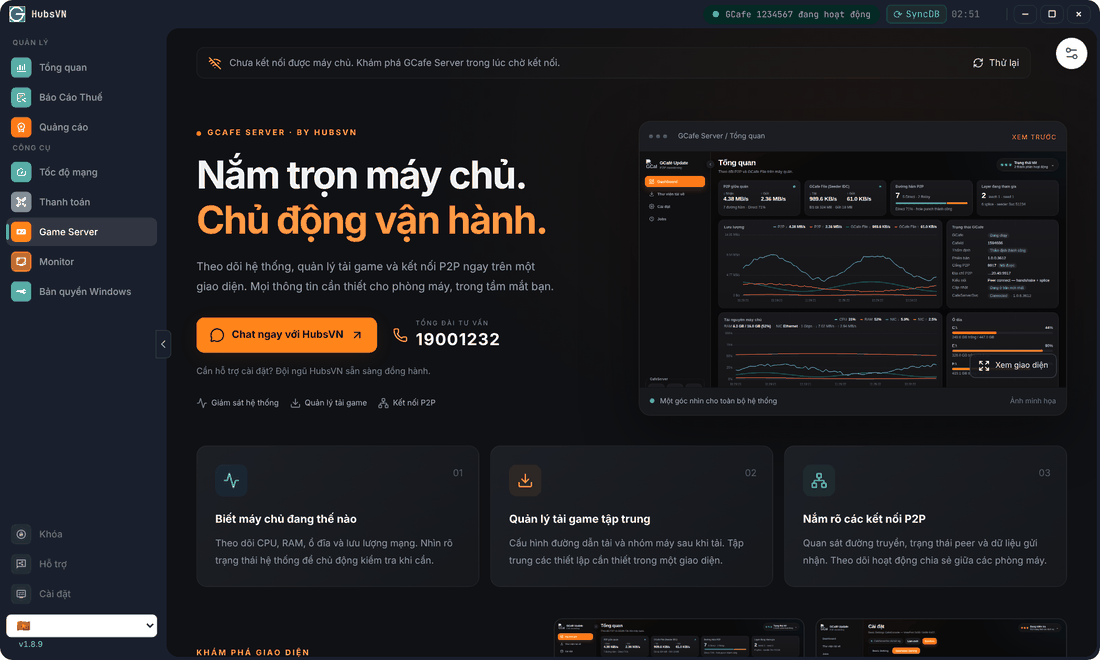
- Click the settings button (slider icon) at the top right.
- Enter the CafeServer machine’s IP server thủ công (manual IP), click ✓ to save and connect.
- To go back to auto-discovery, click Tự động dò lại (Auto-detect again).
Common errors
Message / symptom | Cause | What to do |
|---|---|---|
Dò server quá thời gian. Vui lòng nhập IP thủ công. (Discovery timed out.) | The server was not found on the LAN (different subnet, firewall…). | Enter the CafeServer IP manually. |
Vui lòng nhập địa chỉ IPv4 hợp lệ. (Enter a valid IPv4 address.) | Malformed IP. | Use the form 192.168.1.10. |