Password, app lock and startup
In Cài đặt (Settings) you set a password to protect GCafe Portal and choose how Portal starts with the server.
Turn on the app password
- Click Cài đặt at the bottom of the left menu.
- Turn on Bảo vệ ứng dụng bằng mật khẩu (Protect the app with a password).
- Enter a password (at least 6 characters), click Save.
Result: Portal asks for the password every time it opens.
Lock Portal when you step away
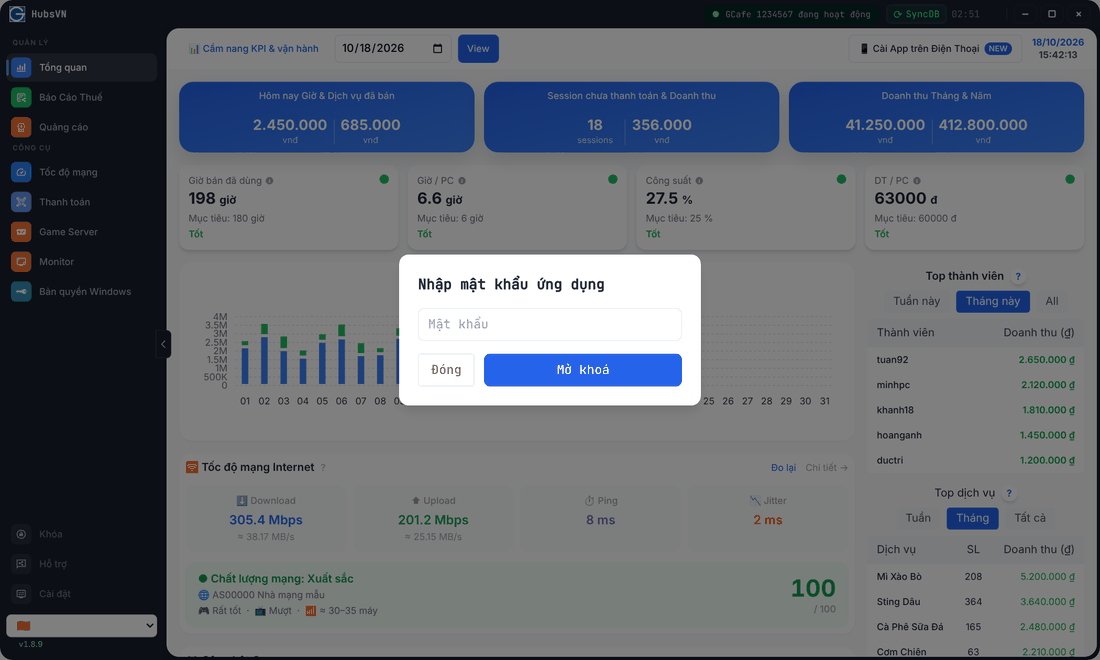
Click Khóa (Lock) at the bottom of the menu. To continue, enter the password and click Mở khoá (Unlock). Locking only works once a password is set.
Start with the server
Under Khởi động cùng (Start with), choose GCafe+ với Normalsize (normal window), GCafe+ nhưng Minimize (minimised) or Ẩn (hidden). The choice applies from the next launch.
⚠️ Note: Turning the password off also turns off Internet remote access. Settings can only be changed on the server itself, not over remote access.