Block websites and view web history
You can block unsuitable websites on every client PC and review the web history of each PC or account when you need to check something.
New interface
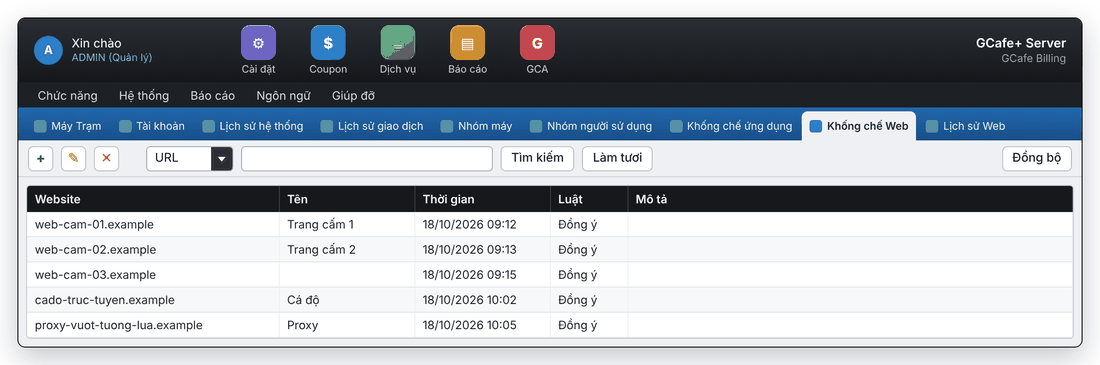
Classic interface
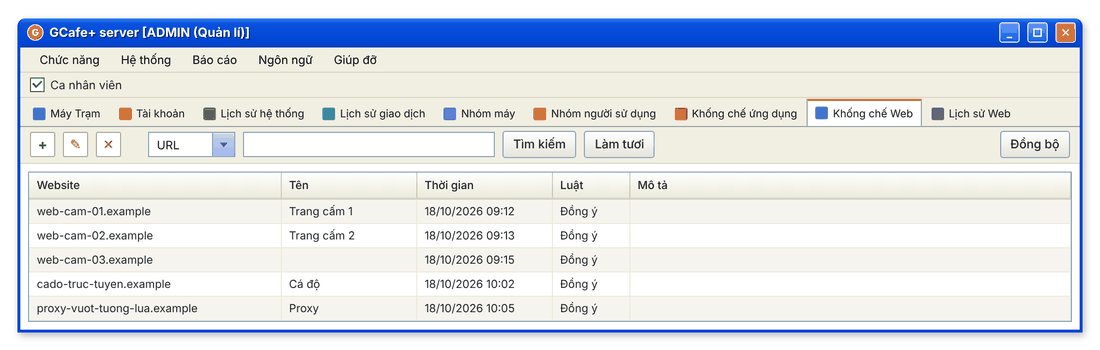
Add a website to block
- Open the Không chế Web (Web blocking) tab and click Add (+).
- Enter Địa chỉ URL Website (website URL, required), plus Tên Website (name) and Mô tả (description) if needed.
- Leave Kích hoạt (active) ticked and click Đồng ý (OK).
New interface
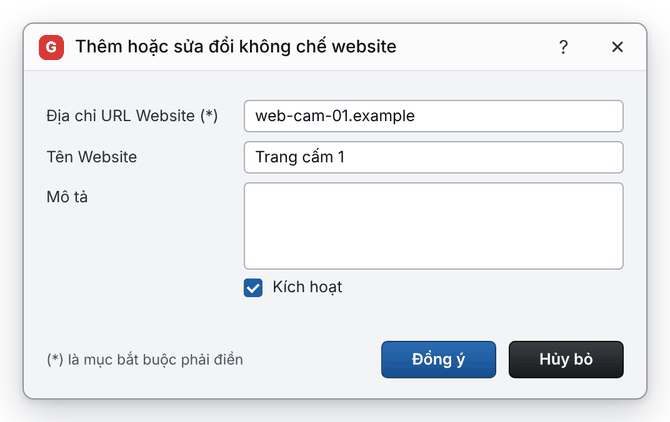
Classic interface
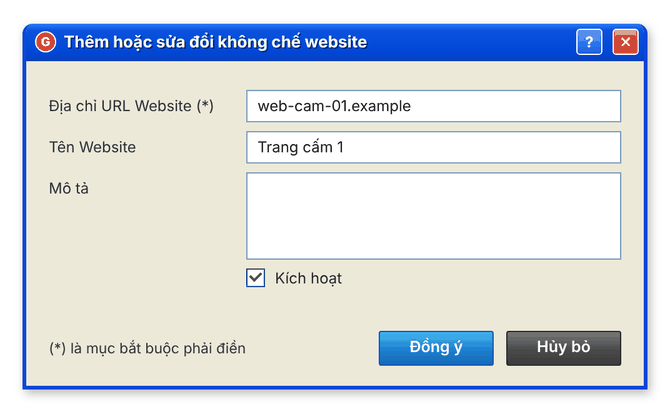
Edit or unblock a website
- Edit: select the website, click Edit (✎), change it, click Đồng ý.
- Remove from the block list: select it, click Delete (✕), then Yes.
- Quick search: choose a column (e.g. URL), type a keyword, click Tìm kiếm (Search); click Làm tươi (Refresh) to see the full list again.
View web history
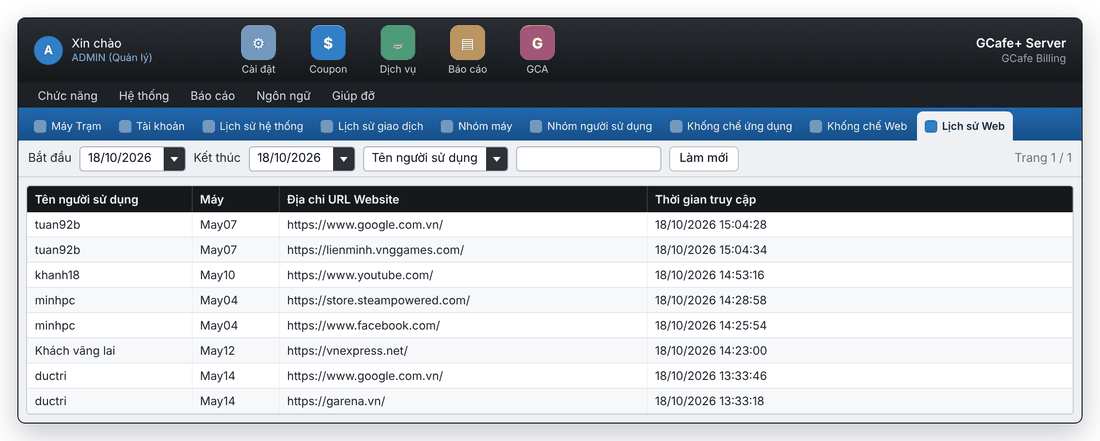
- Open the Lịch sử Web (Web history) tab.
- Choose the Bắt đầu (start) and Kết thúc (end) dates.
- To narrow it down, choose one condition — PC, user name or web address — and enter a value.
- Click Làm mới (Refresh).
New interface
Classic interface
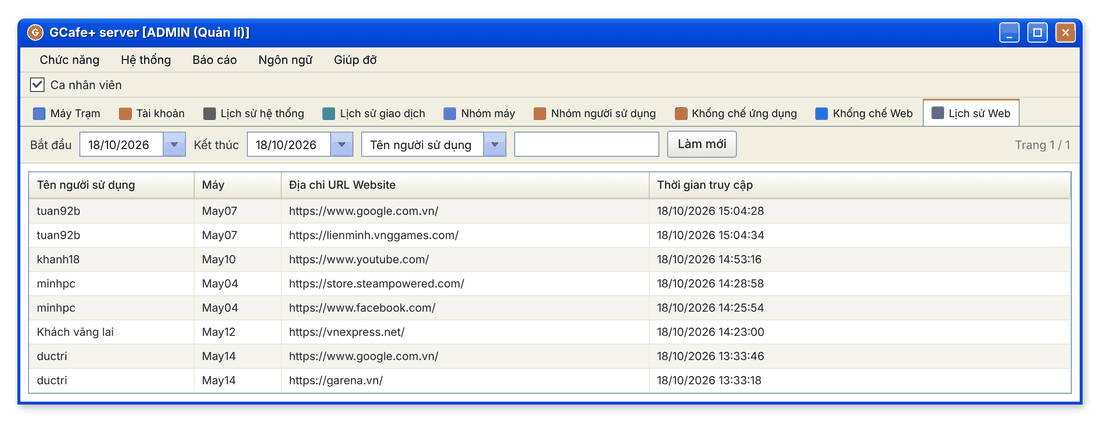
Each row shows the user name, PC, website address and access time. How long web history is kept is set in Log retention.
Common errors
Message | Cause | What to do |
|---|---|---|
"Vui lòng nhập vào tên website!" (please enter the website) | The website address was left empty. | Fill in Địa chỉ URL Website. |
"Website đã tồn tại!" (website already exists) | The website is already on the block list. | Find it in the list and edit it if needed. |
"Ngày bắt đầu không được NHỎ hơn ngày kết thúc." (date range error) | The start date is after the end date. | Choose a start date earlier than the end date. |