Remote access and the phone app
Turn on remote access to check the shop’s revenue and KPIs from your phone anywhere, and install GCafe Portal as an app.
Once on, Portal gets its own Internet link with a QR code for quick opening on a phone.
Before you start
- The app password is on — whoever opens the link must enter it.
- GCafe Billing on the server has a CafeID.
Turn on remote access
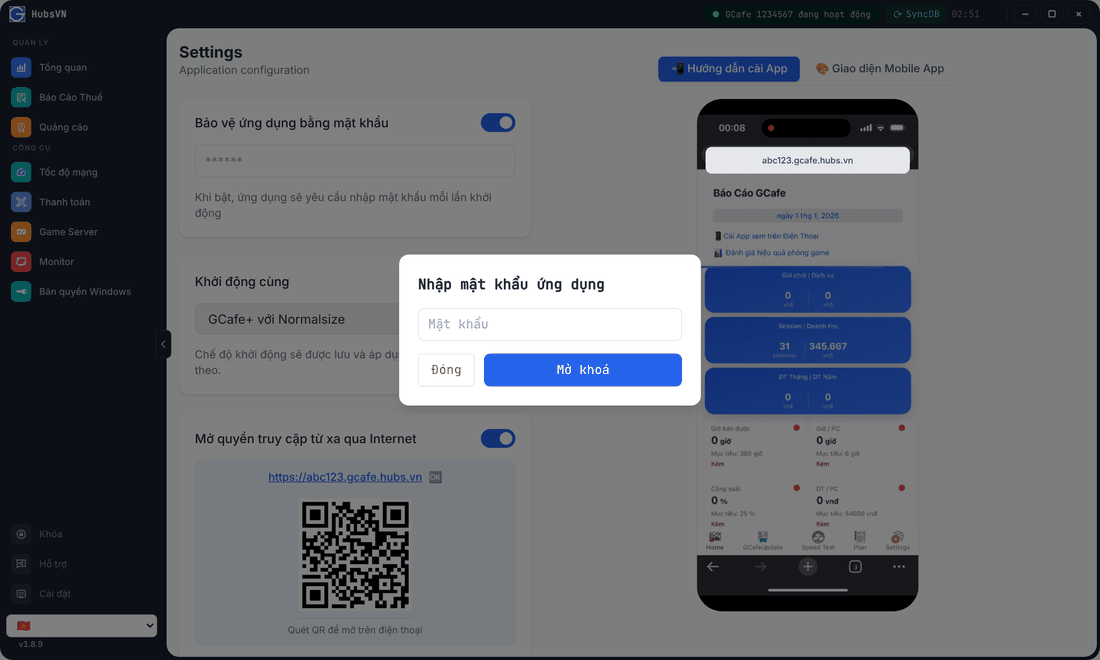
- Click Cài đặt, turn on Mở quyền truy cập từ xa qua Internet (Allow remote access over the Internet).
- Click Save.
Result: Portal shows your shop’s link and a QR code. Scan it with your phone to open.
Install Portal on your phone
- Open the link (or scan the QR) in the phone’s browser.
- Sign in with the app password.
- iPhone (Safari): Share › Add to Home Screen. Android (Chrome): menu ⋮ › Add to Home screen / Install app.
The Hướng dẫn cài App (Install guide) and Giao diện Mobile App (Mobile UI) tabs on the right of Settings have demo videos.
⚠️ Note: Anyone with the link and password can see the shop’s figures. Use a strong password, do not share it, and turn remote access off when you no longer need it.
Common errors
Message / symptom | Cause | What to do |
|---|---|---|
The remote access switch cannot be turned on | No password yet, or the server has no CafeID. | Turn the password on first; verify the CafeID. |
The link does not open | The server is off or offline, or Portal is not running. | Check the server and network; reopen Portal. |
Chức năng này không cho phép chỉnh sửa từ xa (Not editable remotely) | Settings opened over the remote link. | Change settings on the server itself. |